
If you have deleted or lost photos from Windows 11 due to accidental deletion, a system reset, hardware malfunctions, data corruption, or storage space cleaning, follow these steps to recover them.
Methods to Recover Deleted Pictures in Windows 11/10
Before attempting recovery, it’s important to understand where Windows sends deleted photos
Method 1: Check the Recycle Bin
Photos deleted after the fact are moved to the Recycle Bin, where they remain for 30 days before being permanently removed, either manually or automatically when the time period expires.
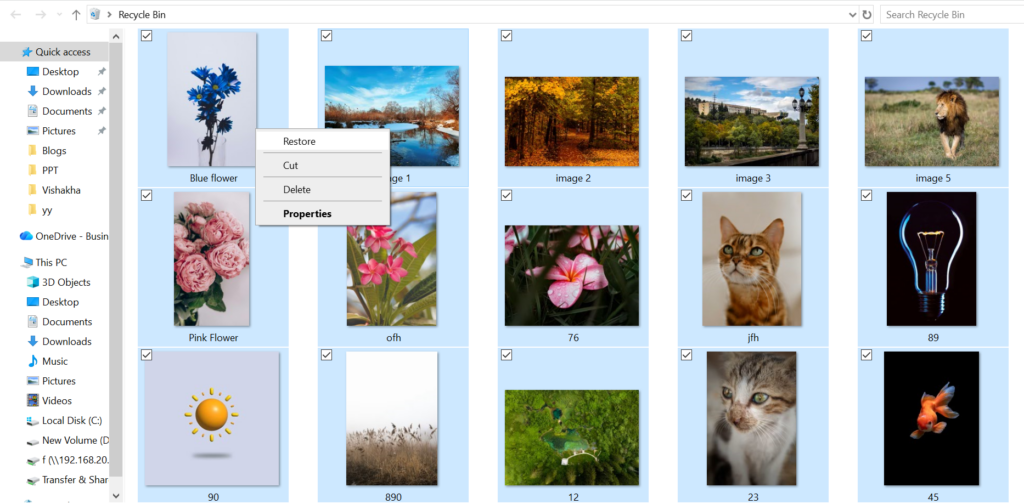
Method 2: Search the System
Photos are sometimes moved to another location accidentally instead of being deleted. So, try finding the images:
- Open File Explorer
- In the search bar, type: .avif, .jpg, .png, etc., and then sort results by Date Modified.
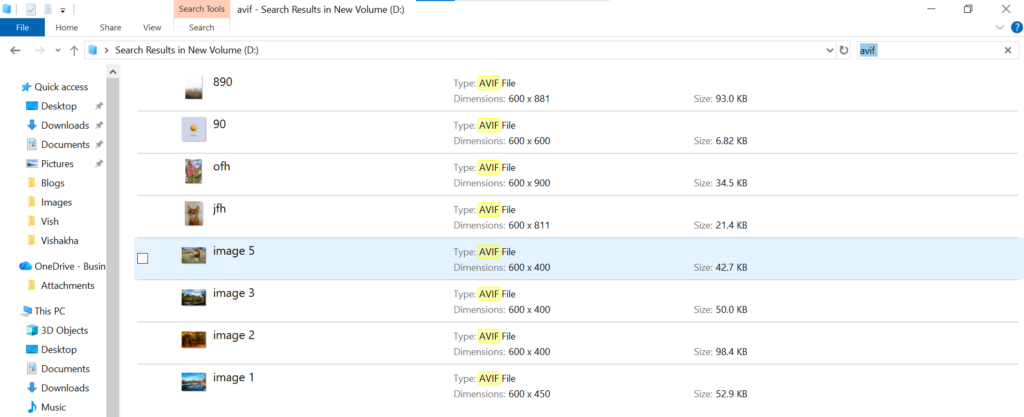
If you remember the name of the folder or photos, search for that directly. This step will help restore photos lost, especially after file reorganization or sync issues.
Method 3: Restore Deleted Photos from Backup (Inbuilt & Cloud)
If you have a habit of backing up your data, it is the safest and most successful way to restore deleted photos.
1. Restore Photos Using Windows Backup (File History & Previous Versions)
Windows can restore deleted photos from File History (user-enabled file backup) and Previous Versions (snapshots created by system restore points, Windows Backup, or managed IT systems) if you enabled it before the data loss occurred.
- Open the folder where the photos were originally stored
- Right-click inside the folder → Properties
- Go to the Previous Versions tab, where you can see the available previous versions of the file or folder.
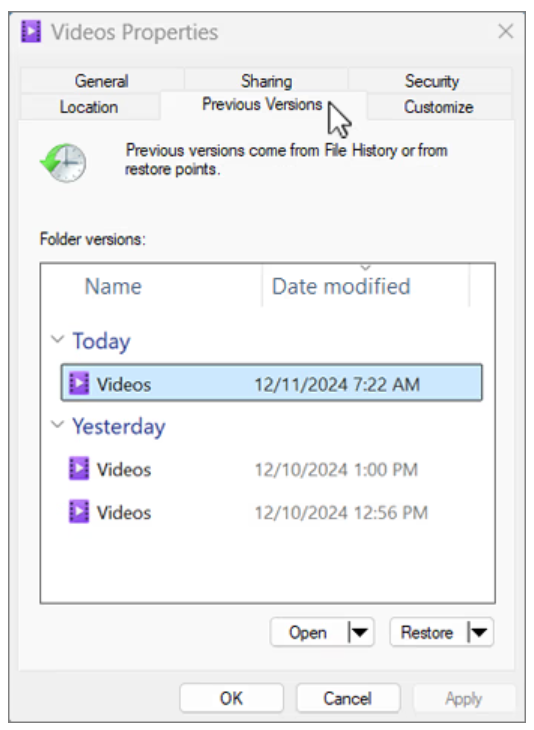
- Select a previous version of the folder that contains the file or folder you want to restore. For example, if the photo was deleted today, choose a version of the folder from yesterday, which should contain the photo file.
- To preview the content of the selected version, expand Open and select Open in File History.
- To restore the content of the selected version, select Restore.
2. Restore Deleted Photos from OneDrive
OneDrive comes built-into Windows 11 and is installed by default. So, if your Pictures folder was synced with OneDrive, deleted photos may still exist in OneDrive even if they’re missing from your system.
- Check the OneDrive folder in your Windows 11.
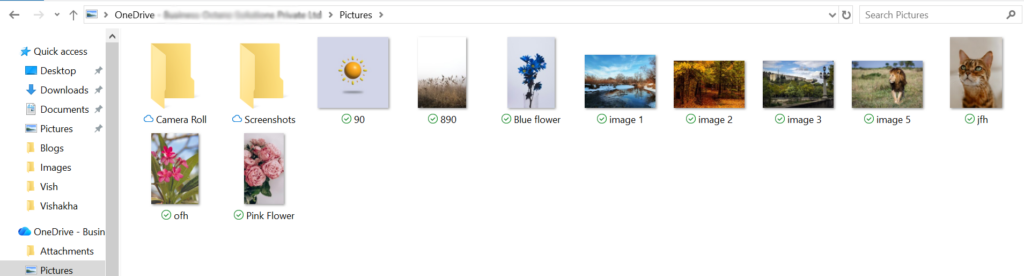
- Or, open OneDrive in a web browser > My Files > look for your photos in Pictures or other folders.
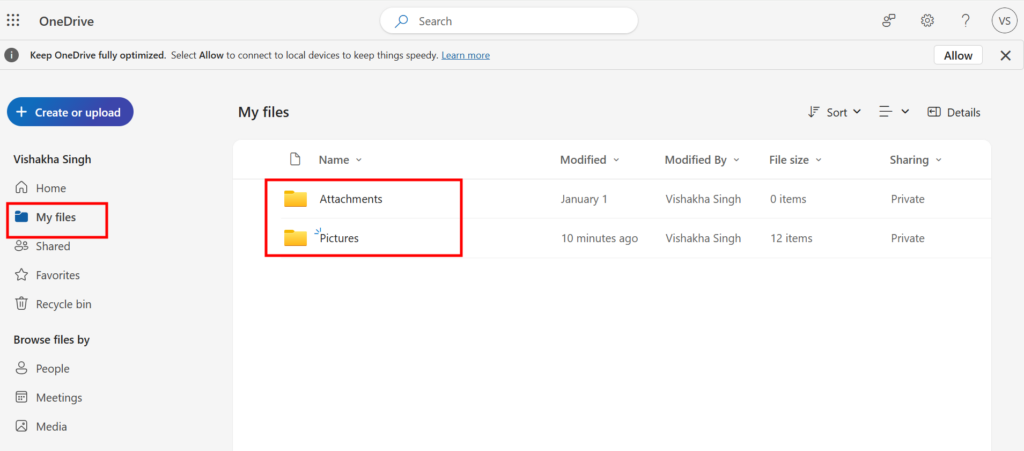
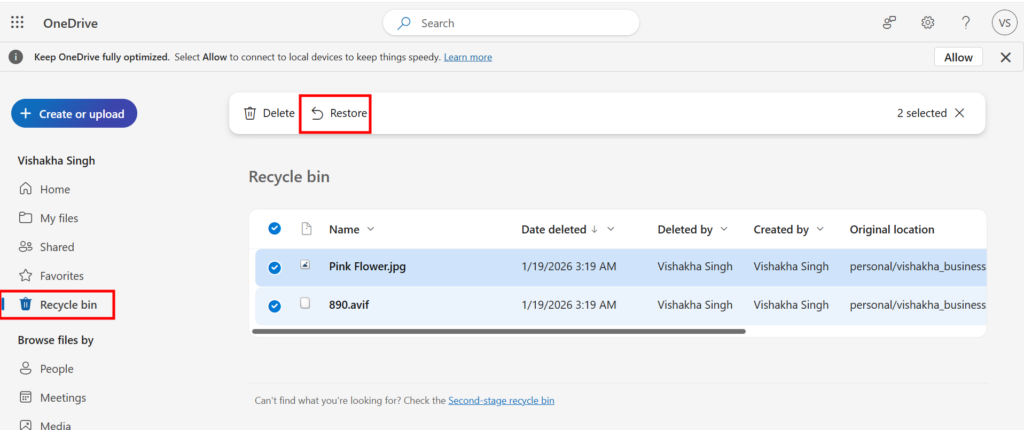
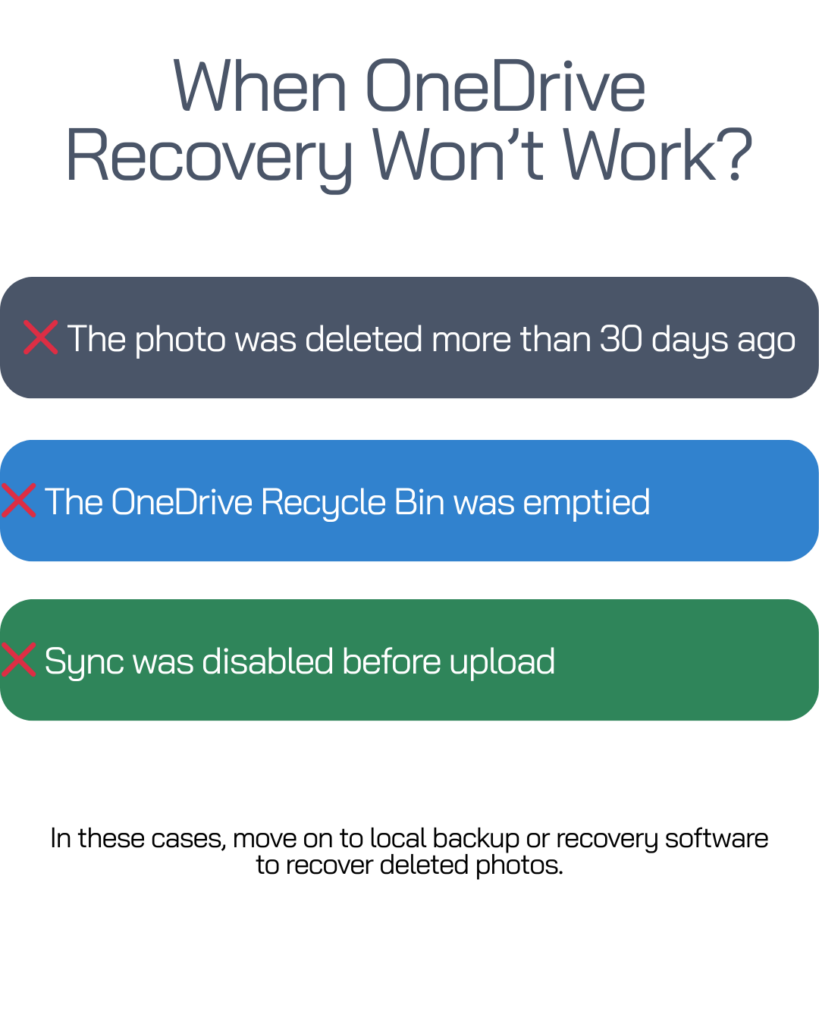
If you cannot find your images in My Files, check the Recycle Bin of OneDrive in the website.
- In OneDrive, click Recycle Bin > select pictures > click on the Restore button at the top.
3. Restore Deleted Photos from Google Photos (If Photos Were Synced)
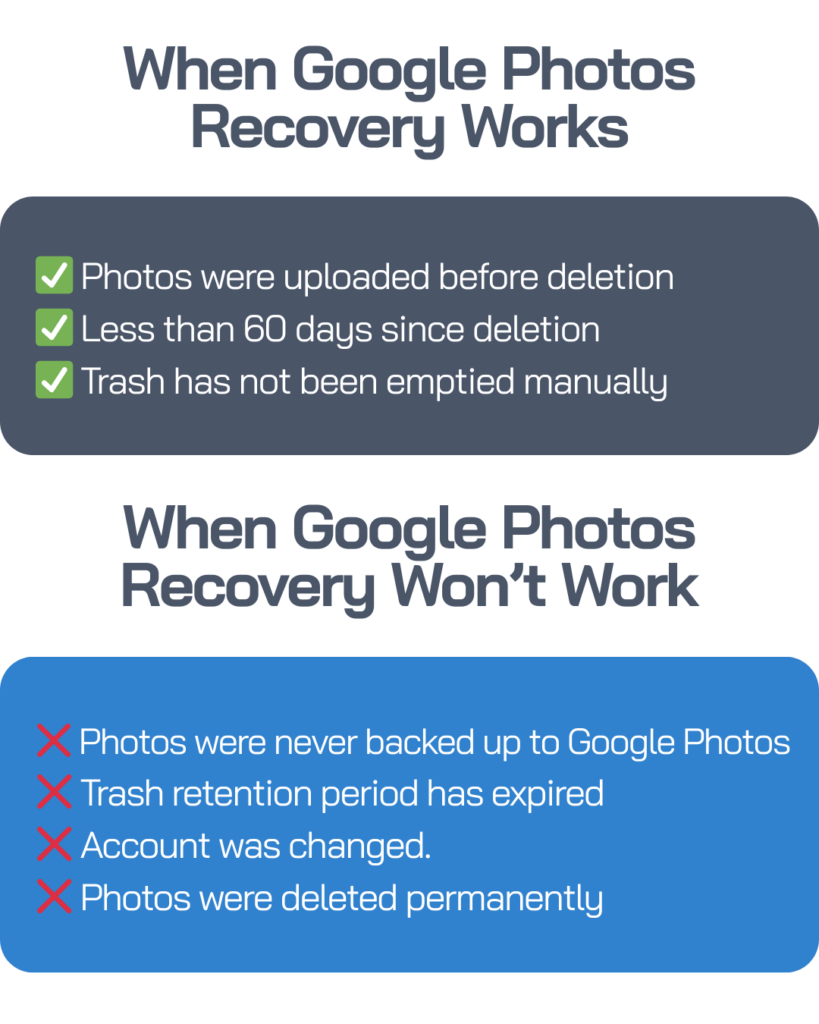
If photos from your Windows 11 were synced or uploaded to Google Photos, recovery may be possible.
- Check Google Photos Library first, if your photos are there, then it was deleted from your PC only.
- If you cannot find pictures in Google Photos Library,
- Open the Trash folder, select the deleted photos.
- Click Restore. Photos will return to the main library and then be downloaded again to your PC.
Google Photos keeps deleted items in Trash for 60 days.
Method 4: Recover Photo with Professional Photo Recovery Software
When you cannot find your photos in the Recycle Bin or in-built/cloud backup, the best option is to try software for photo recovery. These tools are used to scan the Windows storage for fragments of deleted files that the system no longer displays.
The most popular image recovery tool is Stellar Photo Recovery, which easily recovers pictures lost from Windows that appeared lost forever. The success of these tools depends on the new data storage on your PC after deletion.
Keep in mind: This recovery software isn’t free. The preview function in Stellar Photo Recovery lets users view recoverable photos, videos, and other media before purchasing a paid version to recover the images. Still, if photos are truly valuable, it’s worth considering.
Conclusion:
Deleting the photos from Windows does not mean that your photos are destroyed, even though some data loss occurs. Check the Recycle Bin folder, OneDrive, Google Photos, and built-in backup tools first. If needed, use professional recovery tools, and you will still have a good chance of getting them back.